> For the complete documentation index, see [llms.txt](https://docs.one-cp.com/llms.txt). Markdown versions of documentation pages are available by appending `.md` to page URLs; this page is available as [Markdown](https://docs.one-cp.com/configuration-and-setup/payment/receiving/gateway-config.md).
# Gateway Configuration
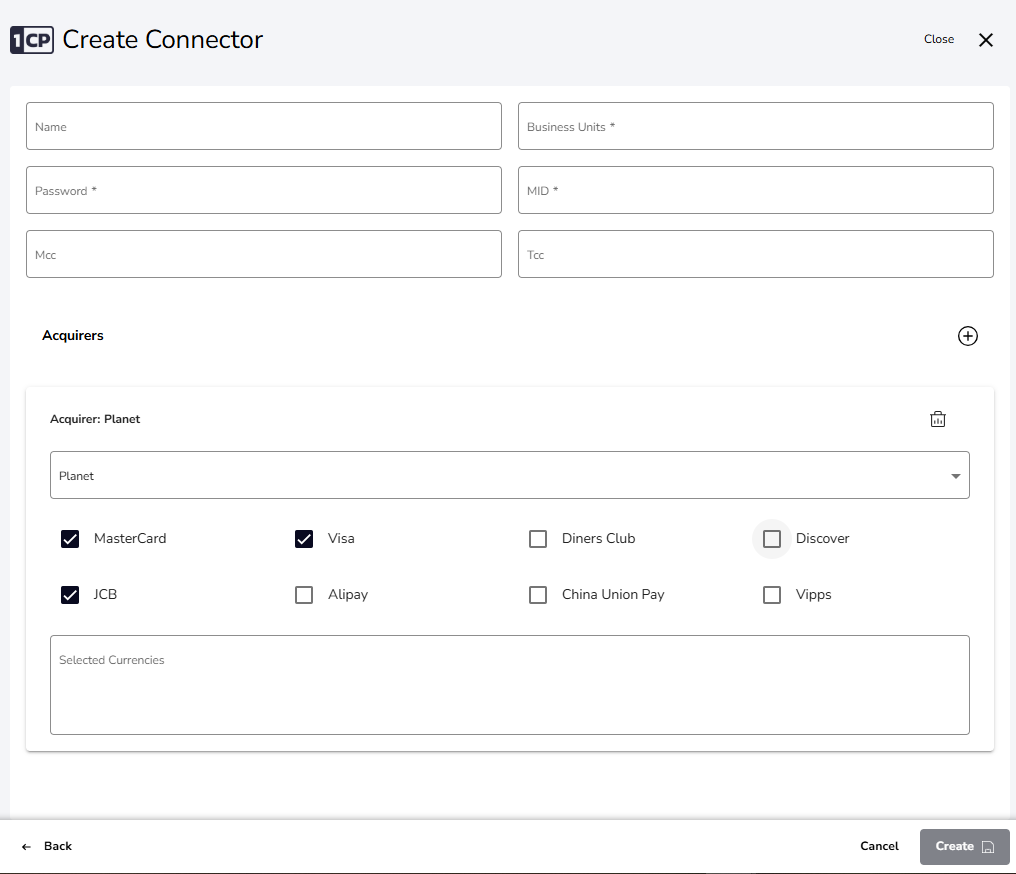
#### **Set Up a Payment Configuration**
**Step 1: Define the Configuration**
1. Navigate to the **Payment Configuration Module**.
2. Create a new configuration by selecting **Receiving** as the configuration type.
3. Select your payment acquirer and enable the payment methods you use.
4. Specify the **Provider Business Unit (BU)** associated with this configuration.
5. Enter merchant ID and password.
**Step 2: Specify Approved Payment Methods**
1. Define the payment methods that will be allowed for contracts under this configuration.
2. Only the payment methods specified here will be available in the contract.
Receiving/Acquirer Config
***
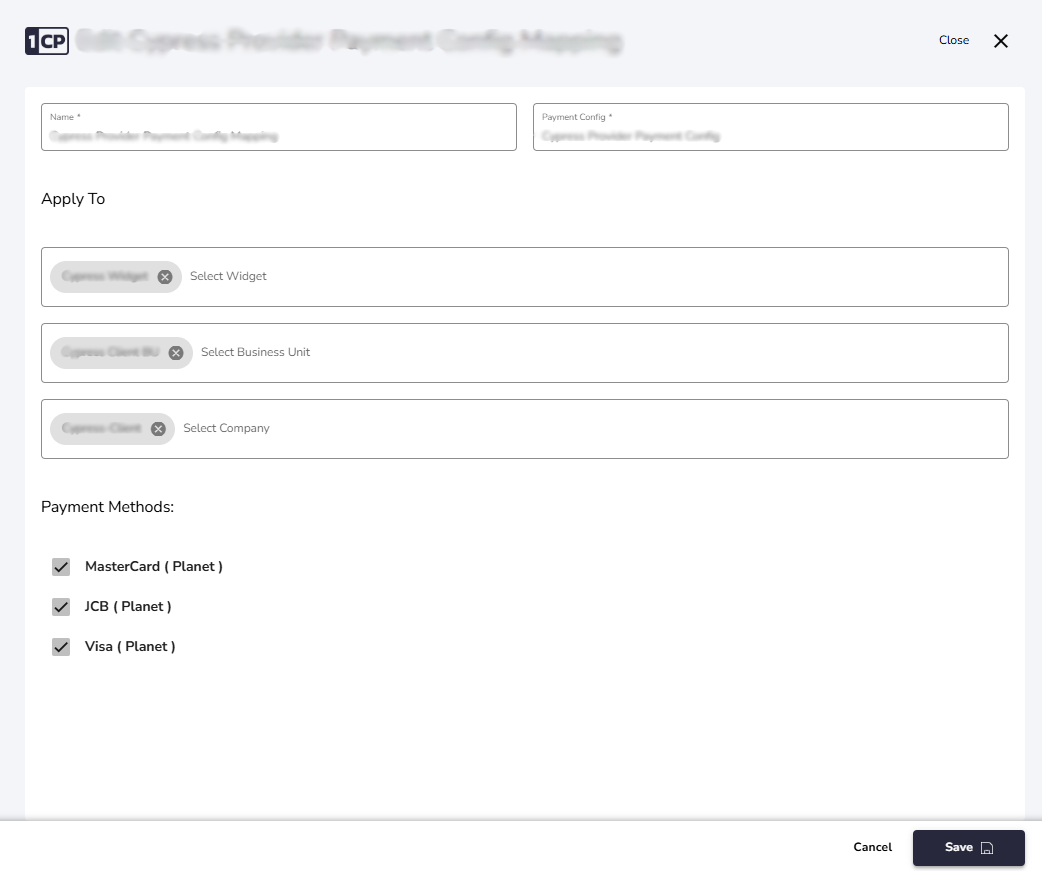
#### Set up a Payment Mapping
**Step 1: Choose the Relevant Payment Configuration**
* Select the **Receiving Payment Configuration** created earlier.
**Step 2: Apply the Configuration**
1. Specify **on whom** this configuration will be applied. This includes:
* **Business Unit**: Select the relevant Business Unit.
* **Company**: Choose the specific company.
* **Widget**: If applicable, select the widget.
2. Ensure the selected configuration aligns with the payment methods approved in the **Payment Configuration**.
Receiving Payment Mapping Config
***
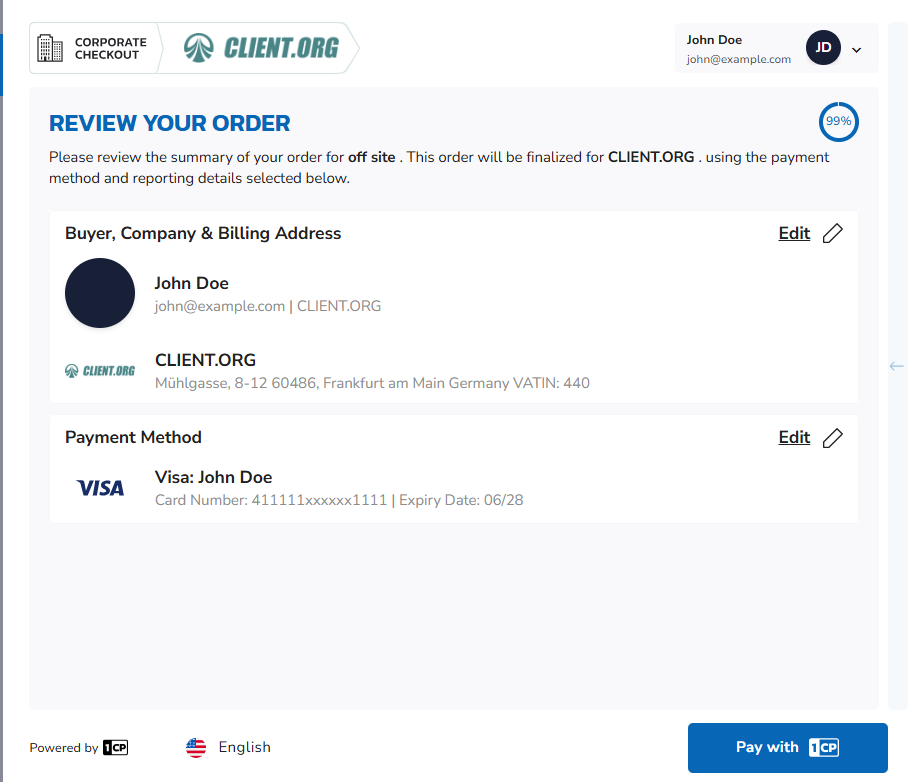
#### Checkout Process for Receiving Configuration
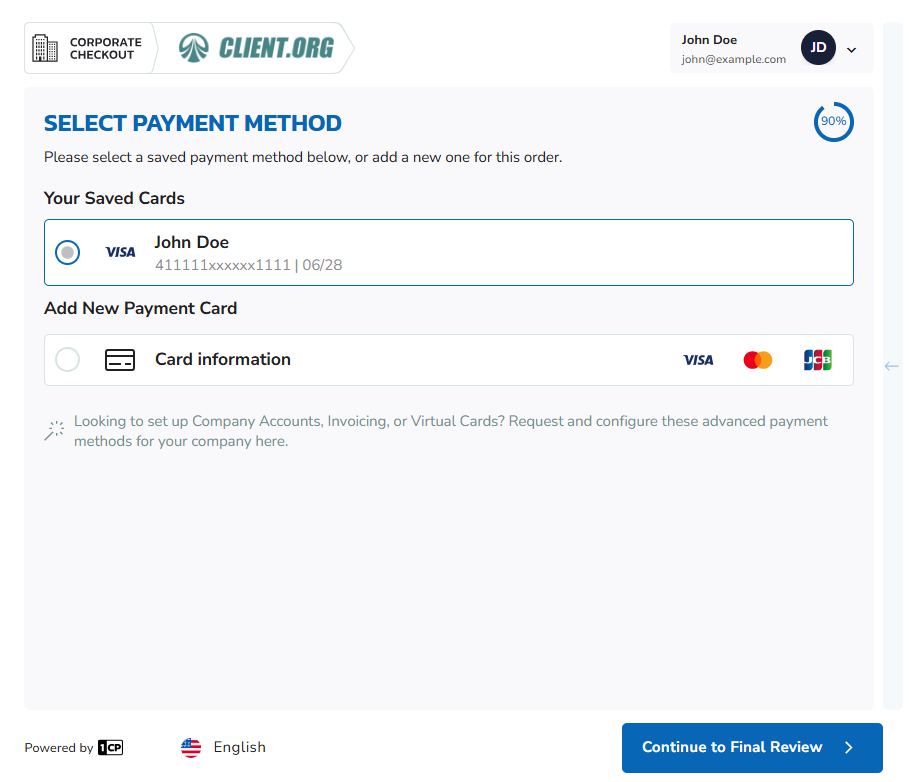
During the checkout phase, the user finalizes the payment by selecting an appropriate payment method from the predefined **Payment Cards**. This process ensures that only approved payment methods, as defined in the **Payment Configuration**, are used.
Checkout Payment Cards
* **The user has two options**:
* **Select Payment Card**: Select a card from the list of previously added and approved payment cards.
* **Add a New Payment Card**: If the desired card is not available, the user can add a new card from the set of allowed payment methods defined in the configuration.