> For the complete documentation index, see [llms.txt](https://docs.one-cp.com/llms.txt). Markdown versions of documentation pages are available by appending `.md` to page URLs; this page is available as [Markdown](https://docs.one-cp.com/configuration-and-setup/payment/receiving/stripe-config.md).
# Stripe Configuration
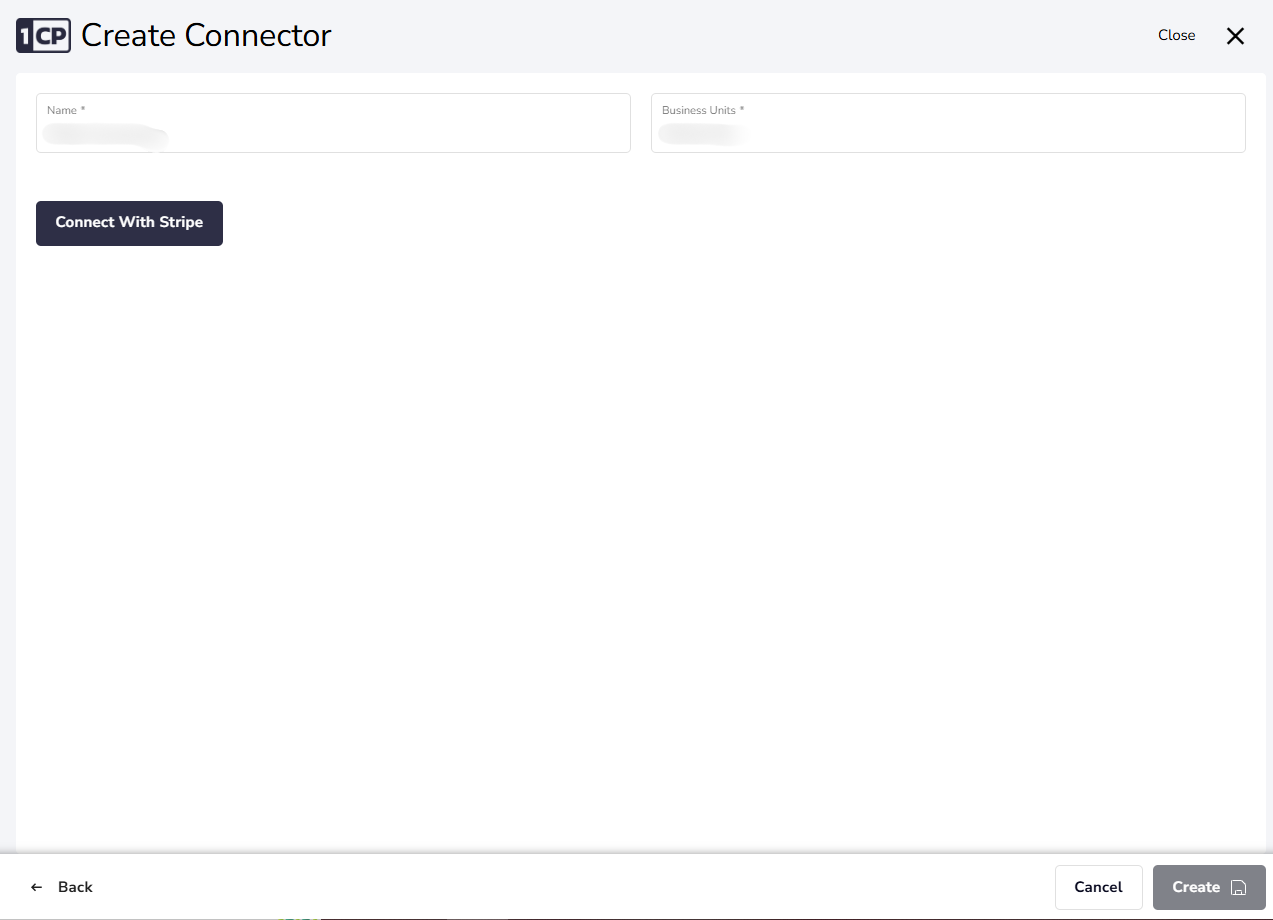
#### **Set Up a Stripe Payment Configuration**
**Step 1: Define the Configuration**
1. Navigate to the **Payment Configuration Module**.
2. Create a new configuration by selecting **Receiving** as the configuration type.
3. Specify the **Provider Business Unit (BU)** associated with this configuration.
Receiving Config For Stripe PSP
***
**Step 2: Connect Your Stripe Account**
Click the Connect button and follow the on-screen instructions to complete the connection process. This will securely grant 1-CP access to your Stripe account.
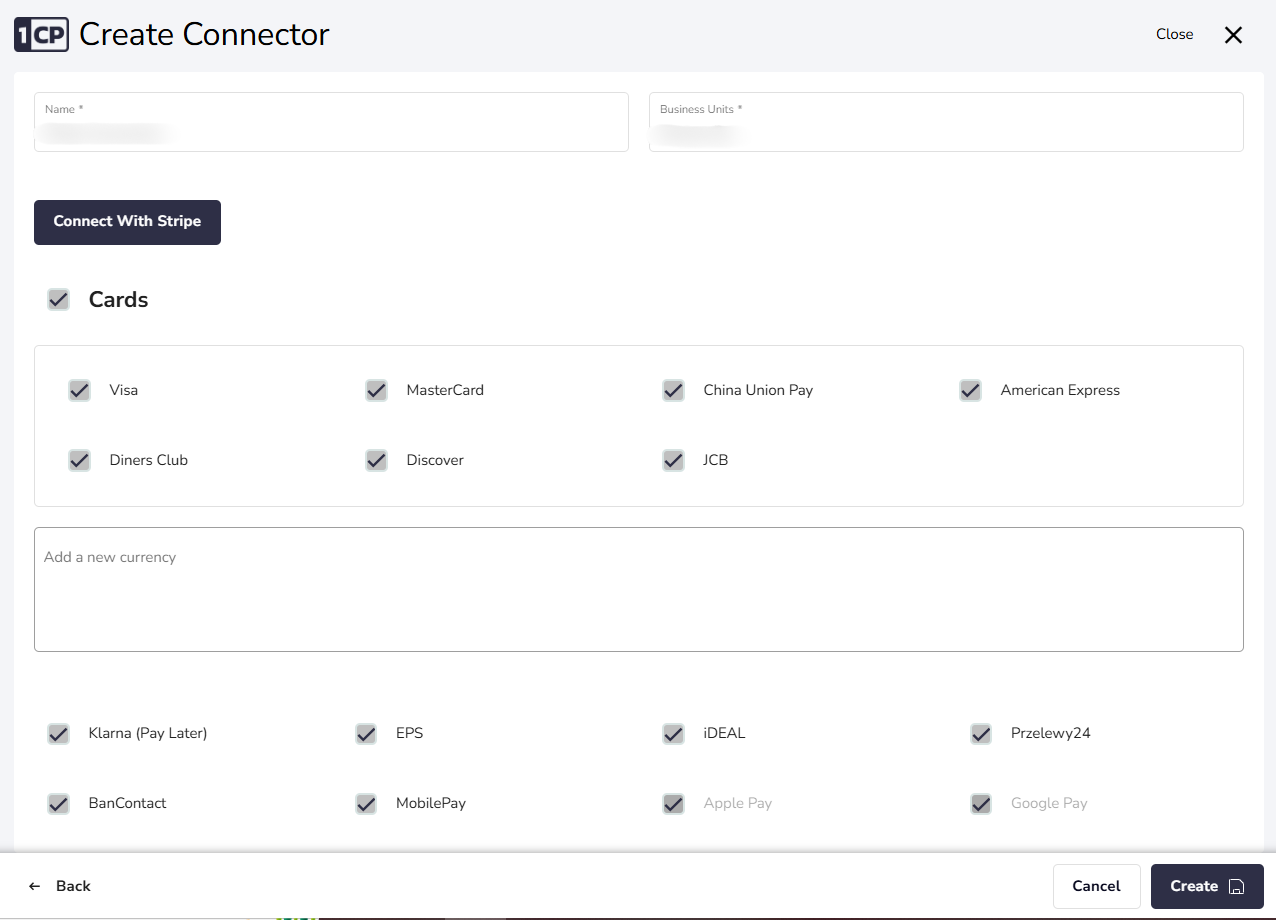
**Step 3: Specify Approved Payment Methods**
After Connection completed successfully, the available payment method will be displayed
1. Define the payment methods that will be allowed for contracts under this configuration.
2. Only the payment methods specified here will be available in the contract.
Successful Connection With Stripe
***
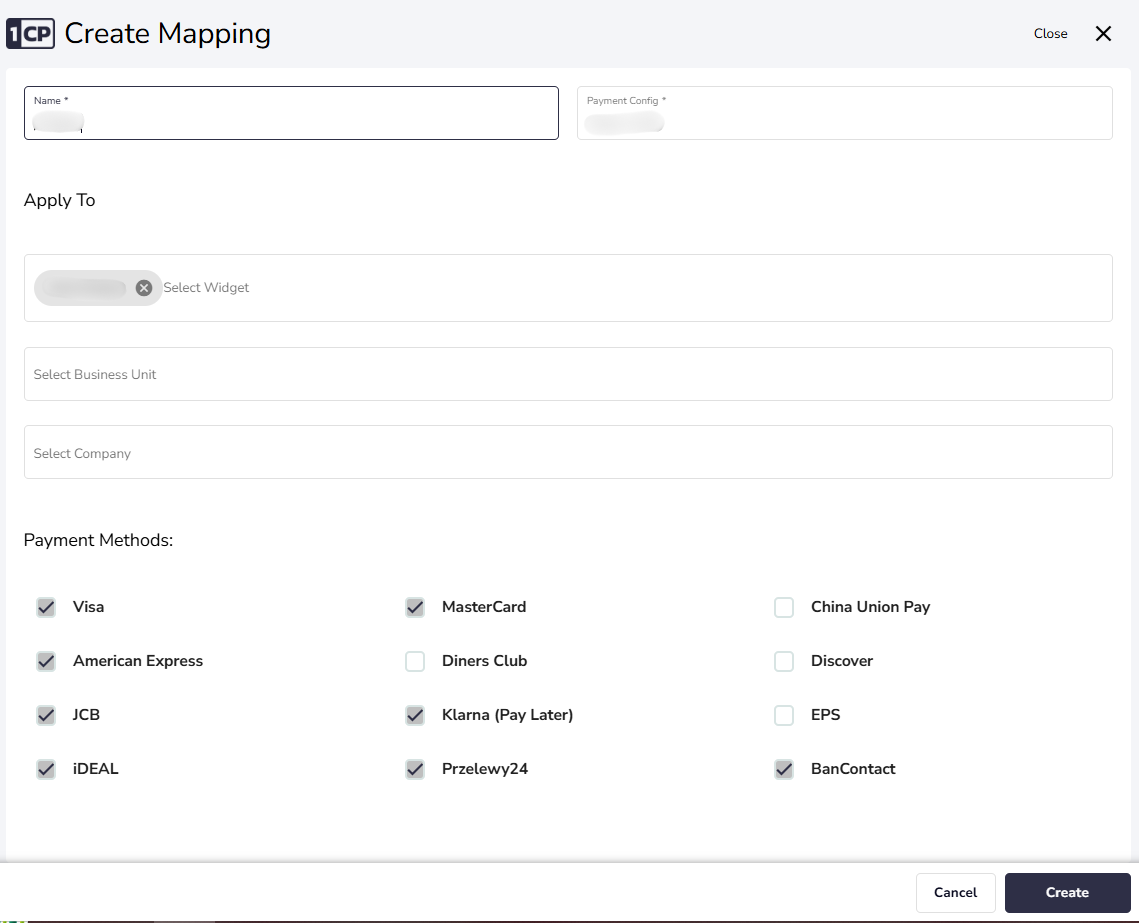
#### Set up a Payment Mapping
**Step 1: Choose the Relevant Payment Configuration**
Select the **Receiving Payment Configuration** created earlier.
**Step 2: Apply the Configuration**
1. Specify **on whom** this configuration will be applied. This includes:
* **Business Unit**: Select the relevant Business Unit.
* **Company**: Choose the specific company.
* **Widget**: If applicable, select the widget.
2. Ensure the selected configuration aligns with the payment methods approved in the **Payment Configuration**.
Receiving Payment Mapping Config
***
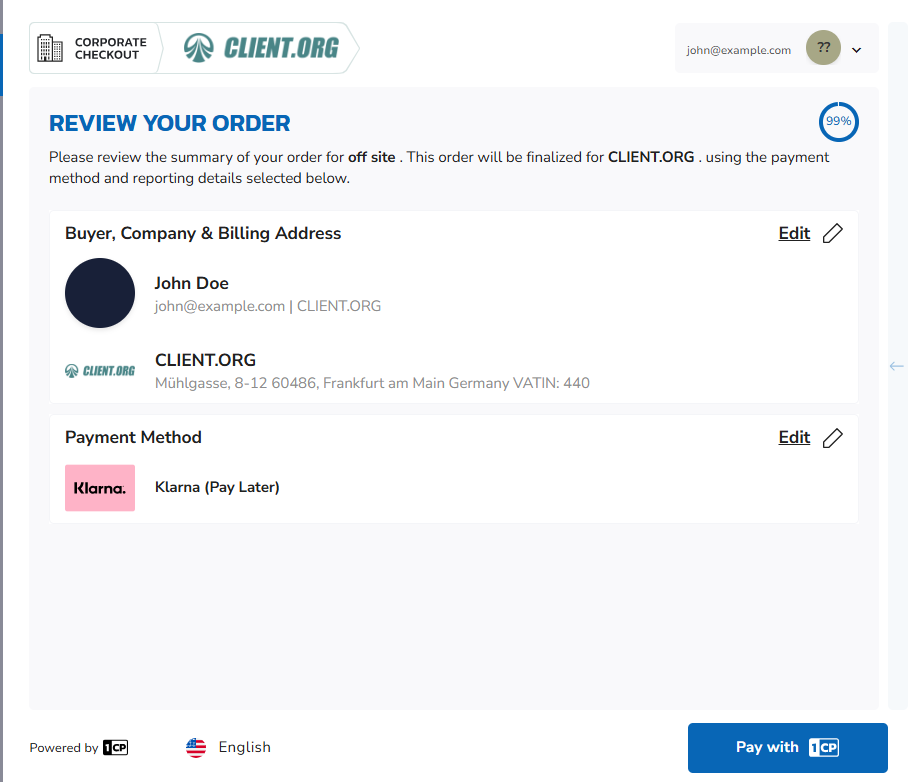
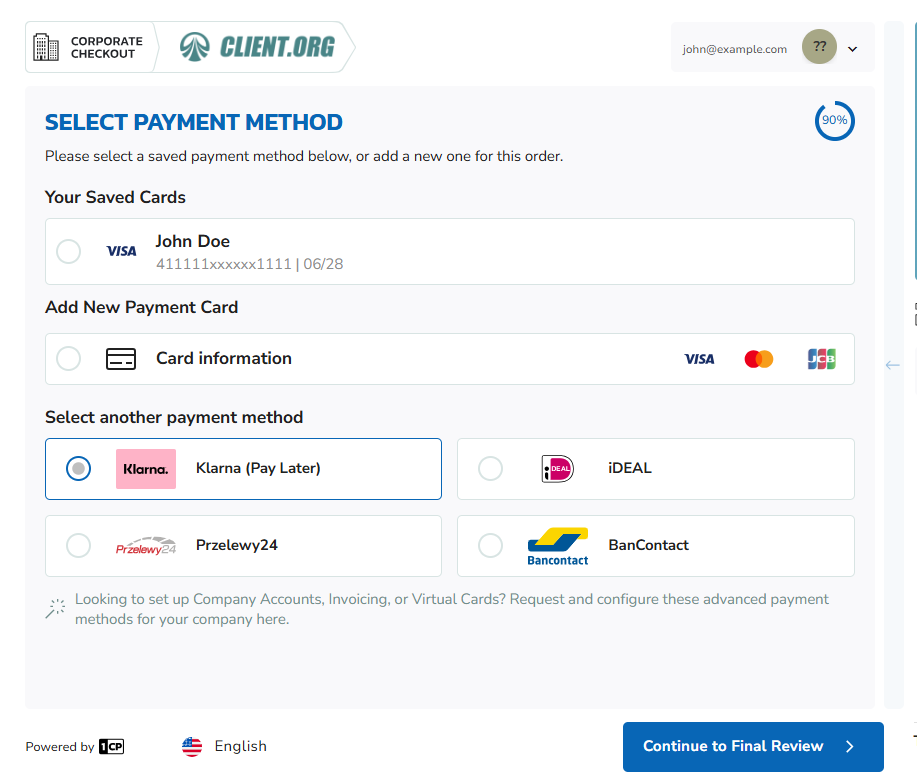
#### Checkout Process for Receiving Configuration
During the checkout phase, the user finalizes the payment by selecting an appropriate payment method from the predefined **Payment Cards** or **Payment Methods**. This process ensures that only approved payment methods, as defined in the **Payment Configuration**, are used.
Checkout Payment Cards and Methods
* **The user has two options**:
* **Select Payment Card or Methods**: Select payment methods from the list of previously added and approved payment cards and methods.
* **Add a New Payment Card**: If the desired card is not available, the user can add a new card from the set of allowed payment methods defined in the configuration.