> For the complete documentation index, see [llms.txt](https://docs.one-cp.com/llms.txt). Markdown versions of documentation pages are available by appending `.md` to page URLs; this page is available as [Markdown](https://docs.one-cp.com/configuration-and-setup/payment/receiving/stripe-paypal.md).
# Stripe PayPal Integration
#### **Set Up a Stripe-PayPal Payment Configuration**
**Step 1: Define the Configuration**
1. Navigate to the **Payment Configuration Module**.
2. Create a new configuration by selecting **Receiving** as the configuration type.
3. Specify the **Provider Business Unit (BU)** associated with this configuration.
**Step 2: Create a restricted API key**
A restricted API key only allows the level of access that you specify. Follow these steps to set up a restricted API key in Stripe:
1. Use the **Developers Dashboard** to create a restricted API key.
2. Click Create restricted key.
3. Choose **Building your own integration**.
4. Give the key a descriptive Key name.
5. Select the following permissions
| **Resource Type** | **Permission** |
| ----------------- | -------------- |
| Charges | Write |
| Payment Intents | Write |
| Customers | Write |
| Events | Read |
| Payment Methods | Write |
6. Create key.
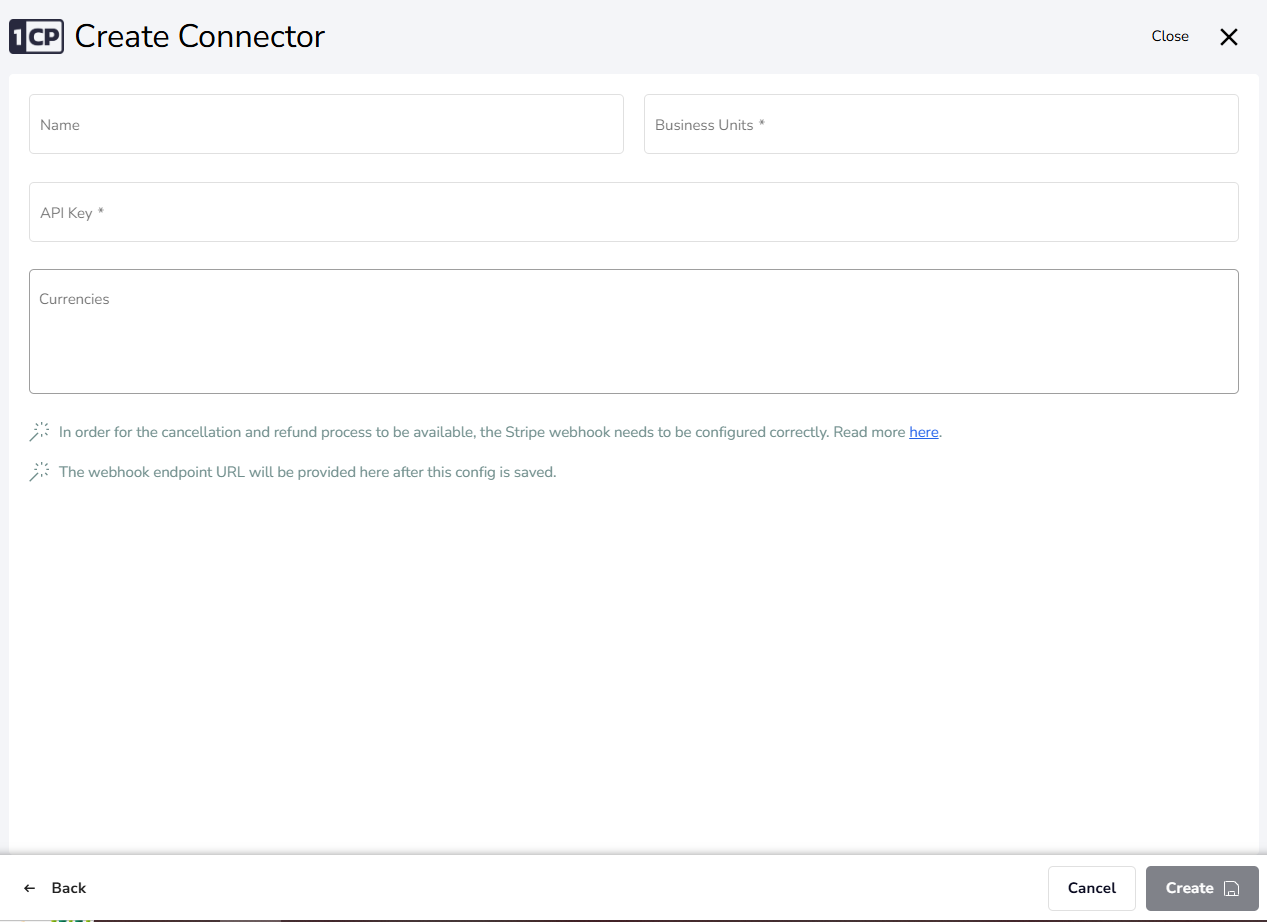
7. Enter created API key in the config.
Receiving Config For Stripe Paypal PSP
**Step 3: Configure the Webhook Endpoint**
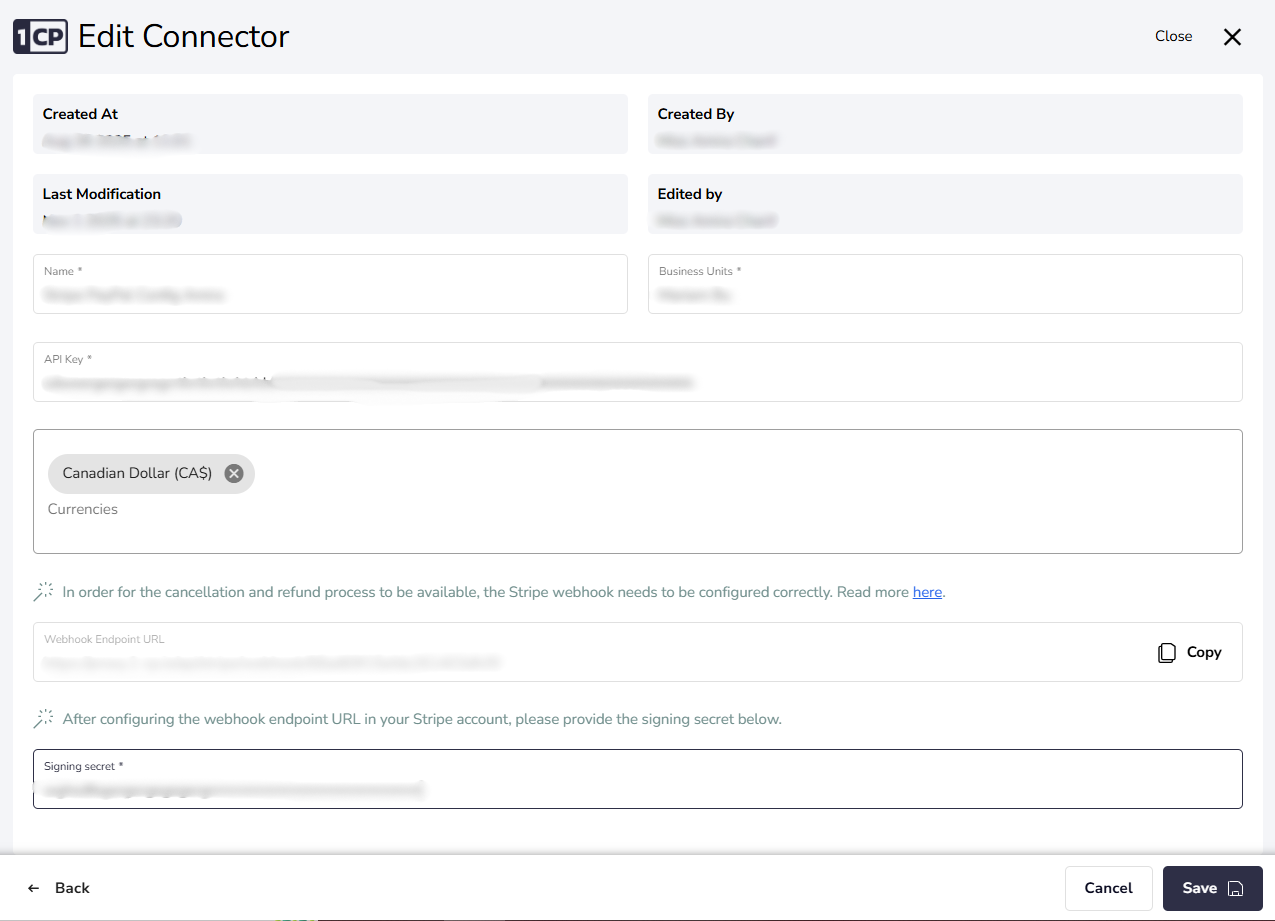
Once the configuration is saved, go to Edit Config — you’ll see your **generated Endpoint URL** there. Follow these steps to configure your webhook in Stripe:
1. In your Stripe Dashboard, navigate to **Developers → Workbench**.
2. Open the **Webhooks** tab in Workbench.
3. Click **Add destination**.
4. Under Events from, choose Your Account
5. Select the API version **2025-05-28.basil**.
6. Go to the All events tab, scroll down to the **Refund** section, and select:
* refund.failed
* refund.updated
7. Click Continue to proceed to the Destination Type page, then choose **Webhook Endpoint**.
8. Enter a descriptive name for the destination, paste the **generated Endpoint URL** and Click **create Destination**.
**Step 4: Add the Signing Secret**
Copy the Signing Secret from Stripe and paste it into your config. Once added, save the configuration to complete the setup.
Edit Receiving Config For Stripe Paypal PSP
***
#### Set up a Payment Mapping
**Step 1: Choose the Relevant Payment Configuration**
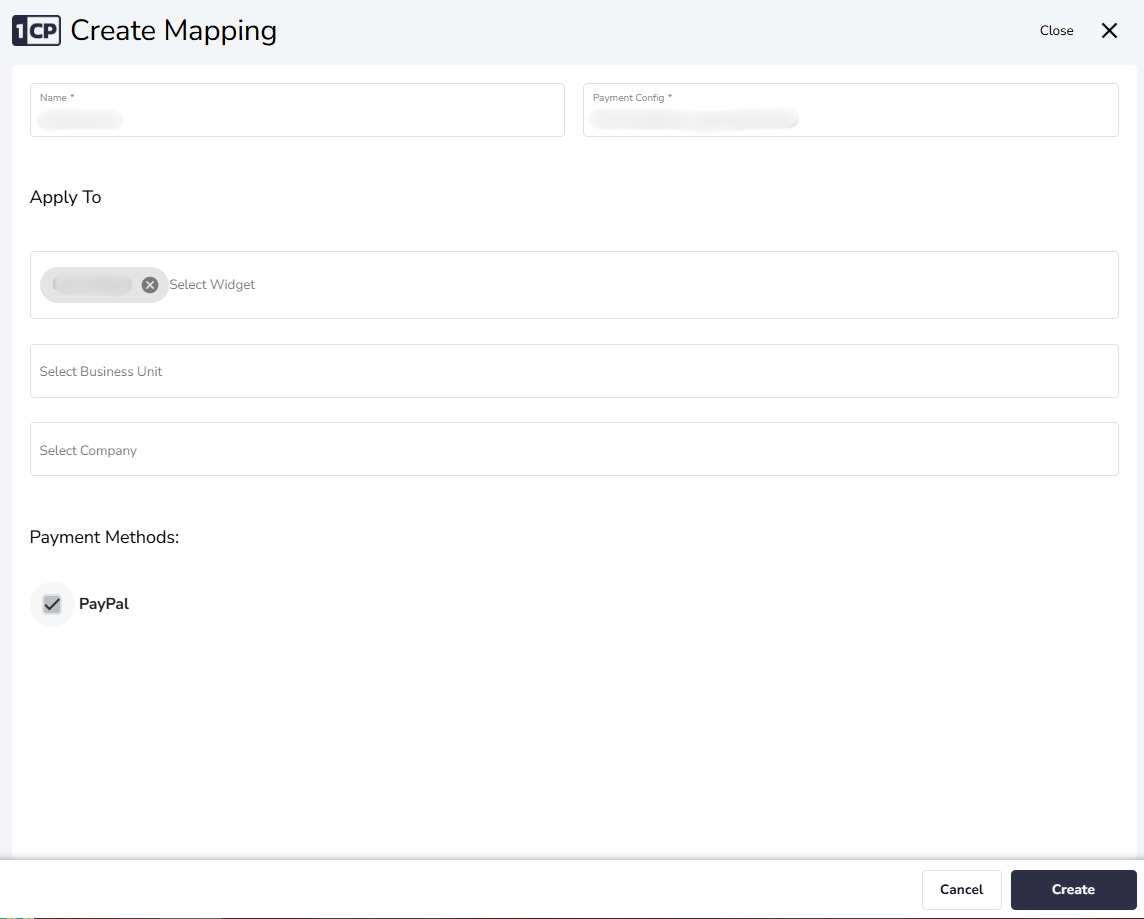
Select the **Receiving Payment Configuration** created earlier.
**Step 2: Apply the Configuration**
1. Specify **on whom** this configuration will be applied. This includes:
* **Business Unit**: Select the relevant Business Unit.
* **Company**: Choose the specific company.
* **Widget**: If applicable, select the widget.
Receiving Payment Mapping Config
***
#### Checkout Process for Receiving Configuration
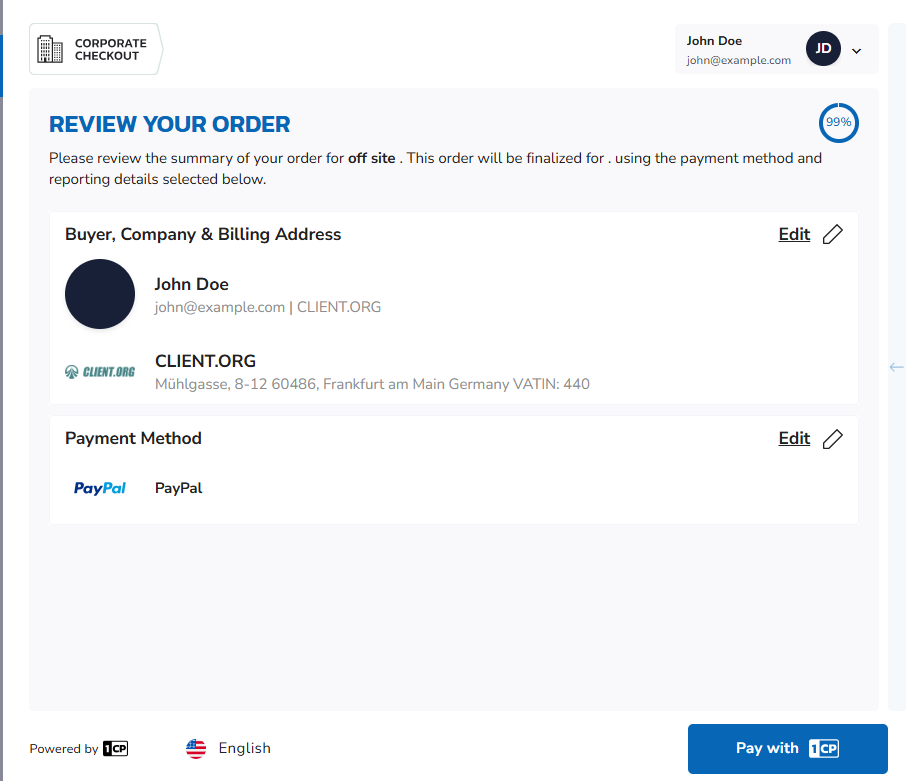
During the checkout phase, the user finalizes the payment by selecting PayPal payment method.